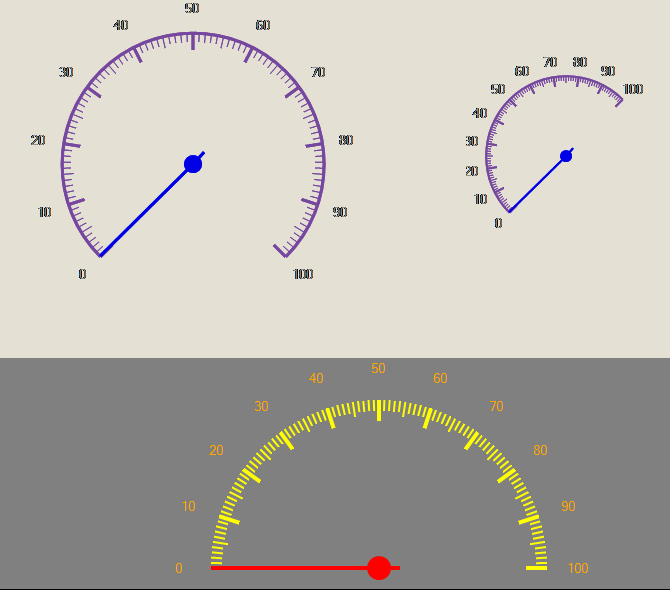
Use a Gauge to place radial gauge in a window.
Open the destination window to add the Control.
From the Toolbox, select the Control icon, move the pointer into the window and drag out the initial position and size for the control.
If the Property Editor is not displayed, click on Ribbon > Home > Property Editor
Click on the Control. The Properties for the control will appear in the Property Editor panel and allow changes to be made.
Name: Name of the control
Alias: Alias of the control
General:
Template: Select a template from the defined templates to use for this control. See Templates.
Layout: Determines the layout parameters for the control
X: X location in the window to place the control
Y: Y location in the window to place the control
Width: Width of the control
Height: Height of the control
Anchor: Which edge of the window the control is anchored to when the window is resized. See Anchors.
Visual: The Visual category allows the user to configure the look and feel of the control.
Visible: Defaults to visible but untick if you wish this Control to be invisible
Arc Start: Start position of the radial arc.
Arc Length: Length of the radial arc
Min Value: Minimum value of the gauge
Max Value: Maximum value of the gauge
Scale Step: Different between 2 scale points.
Back Color: Select the background color of gauge.
Arc Color: Select the arc color of gauge.
Text Color: Select the scale text color of gauge.
Scale Color: Select the scale color of gauge.
Needle Color: Select the needle color of gauge.
Binding: The following properties of the Gauge Control may be bound to a tag;
Value:
Visible: